
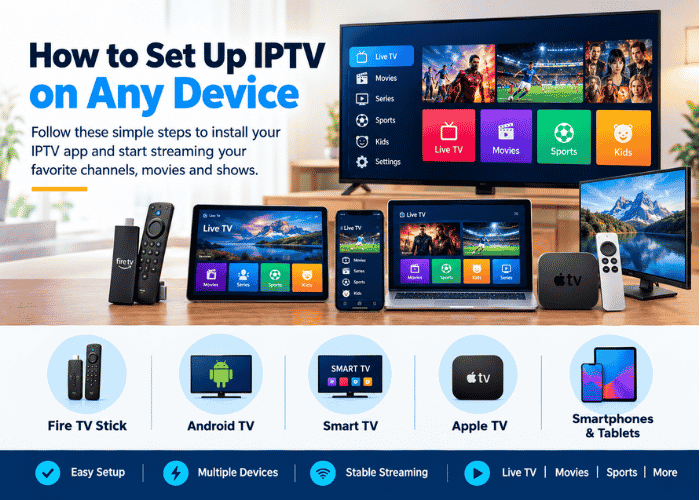
Setting up IPTV is simple when you have a compatible device, a reliable internet connection, and your IPTV subscription details. IPTV Ultra Stream can be accessed through compatible IPTV player applications on devices such as Fire TV Stick, Android TV, Smart TVs, Apple TV, smartphones, and tablets.
Follow the steps below to install your IPTV app and get started.
1. How to Set Up IPTV on Fire TV Stick
Step 1: Connect your Fire TV Stick to your television and connect it to Wi-Fi.
Step 2: From the Fire TV home screen, open the Appstore and search for a compatible IPTV player.
Step 3: Select the IPTV player and choose Get or Download to install it.
Step 4: Open the IPTV application after installation.
Step 5: Select the login method provided by your IPTV service. Depending on the application, you may need to enter an M3U playlist URL, Xtream Codes details, or another supported connection method.
Step 6: Enter your IPTV subscription information carefully and select Add User, Login, or the equivalent option.
Step 7: Wait for the application to load your channel list and categories.
Your IPTV content should now appear inside the application.
2. How to Set Up IPTV on Android TV
Step 1: Turn on your Android TV and connect it to the internet.
Step 2: Open the Google Play Store.
Step 3: Search for a compatible IPTV player and select Install.
Step 4: Launch the application once installation is complete.
Step 5: Choose the connection option supported by your IPTV subscription, such as Xtream Codes API or M3U Playlist.
Step 6: Enter your username, password, server/playlist information, if required.
Step 7: Select Add User or Login and allow the application to synchronize your available content.
Once loading is complete, select a channel or category to begin streaming.
3. How to Set Up IPTV on a Smart TV
Smart TV setup can vary depending on the manufacturer and model.
Step 1: Connect your Samsung, LG, or compatible Smart TV to the internet.
Step 2: Open your television’s built-in App Store.
Step 3: Search for a compatible IPTV player.
Step 4: Download and install the application.
Step 5: Open the IPTV app and select its available login or playlist option.
Step 6: Enter the IPTV subscription information provided to you.
Step 7: Save the details and wait for the channel list to load.
You can then browse the categories available through your subscription.
4. How to Set Up IPTV on Apple TV
Step 1: Connect Apple TV to your television and internet connection.
Step 2: Open the App Store from the Apple TV home screen.
Step 3: Search for a compatible IPTV player.
Step 4: Select Get to download and install the application.
Step 5: Open the IPTV player and choose the appropriate login method.
Step 6: Enter your subscription credentials, M3U playlist, or other required information.
Step 7: Save the configuration and wait for your channels and content to load.
5. How to Set Up IPTV on Android Phone or Tablet
Step 1: Open the Google Play Store.
Step 2: Search for a compatible IPTV player and install it.
Step 3: Launch the application.
Step 4: Select the supported connection method, such as an M3U playlist or Xtream Codes.
Step 5: Enter your IPTV subscription details.
Step 6: Tap Login, Add User, or the corresponding button.
Step 7: Wait for your channel categories to load and select your preferred content.
6. How to Set Up IPTV on iPhone or iPad
Step 1: Open the Apple App Store.
Step 2: Search for a compatible IPTV player.
Step 3: Download and install the application.
Step 4: Open the app and select its supported playlist or login option.
Step 5: Enter the subscription information provided by your IPTV service.
Step 6: Save the settings and allow the application to load your available channels.
Troubleshooting IPTV Setup
If your channels do not load, check the following:
- Make sure your device is connected to the internet.
- Recheck your username and password for typing errors.
- Confirm that your M3U URL or server information is entered correctly.
- Restart the IPTV application and your streaming device.
- Check whether the IPTV player supports your subscription format.
- Try a stable Wi-Fi or Ethernet connection if buffering occurs.
Start Streaming With IPTV Ultra Stream
After completing the setup, you can explore the channels and content included with your IPTV subscription. Keep your subscription credentials private and use compatible applications and authorized content according to applicable laws and service terms.
Important: App names, menus, and setup options can change between devices and software versions. Always follow the instructions supplied by your IPTV provider and the IPTV application’s developer.